Alta Video and CHeKT: Integrating AI Event Triggers

This guide will depict connecting to the video stream of the camera and enabling the WebHook from the Alta Video web interface, as well as enabling the API communication method from the CHeKT Portal side.
Let's get started
Adding the Alta Video Streams into CHeKT:

ONVIF Compatible Cameras can be connected to the VCP following the classic CHeKT Network Discovery Method:
If connecting to the RTSP Stream hosted in the Alta Video Software, please refer to the steps referenced in the next section:
Generating the RTSP URL in Alta Video Software
Generating the RTSP URL in Alta Video Software
Connect to the Alta VideoWeb Client and Select Devices from the Main Menu:
In the Devices List, hover over the target camera, and right-click to open the menu:
Choose Edit Config Settings:
In the pop-up menu, choose Video from the left hand column:
In the Video menu, locate the RTSP & RTSPS Streaming Section and click Copy RTSP Information:
The system will present a Success Dialogue :

Retain the copied RTSP URL parameters for your records. You can follow this guide to mount the Alta RTSP Stream to the CHeKT VCP using the URL: https://support.chekt.com/portal/en/kb/articles/mounting-cameras-using-the-video-stream-url-function.

The CHeKT VCP recommends a certain frame rate and resolution from the mounted stream, you can dictate these parameters in the video stream URL by appending the required variables to the end: rtsp://(IP)/deviceStreams?width=720&height=360&fps=10
Enabling the Cloud API Key in the CHeKT Portal (Recommended Method)
Log into the CHeKT Dealer Portal at https://dealer.chekt.com/ using a valid administrator credential.
Access the Settings Gear at the bottom of the left-hand navigation pane:
In the left-hand menu, click API Keys under the last section heading Developer Settings:
The presented menu will show any previously generated API Keys. There is a limit of 5 per Dealer Account, but they can be utilized in multiple integrations
Click Create API Key:
Name the Key:
Click the Next Button:
The Key is shown on the next screen, and it can be copied or downloaded for user tracking:

Ensure to retain this key for your records, as this key is no longer visible after Done is clicked
Click Done.
This API Key sill serve as the credential for the Alta software to create alarms in the CHeKT Platform and is required for the Configuring Detection and Webhooks in Alta step below.
Configuring Detection and Webhooks in Alta Video Software with CHeKT API:
From the Main Menu, select Rules:
Click the Plus on the top right to add a new rule:
In the Add Menu, name the rule and select the detection type, and click Next:
"What" Select the Detection Parameters for the chosen rule and click Next
"Where" Select the camera to add the rule to
(Click next when complete)
This should be the same camera stream you have connected to the CHeKT VCP in the first configuration step
Place the Rule(s) and click Next:
"When" configure the rule activation time frame for your alarm:
(Click next when complete)
In the Actions menu, Click the Gear to configure Advance Options
Select the trigger type and alarm merging options, and click Done

Both Security Alarm and Security Event will report to the CHeKT Bridge
Enable the WebHook in the Actions Menu and click the configuration gear:
In the pop-up Webhooks menu, click the plus button to add new webhook:
Configure the Webhook:
Enter the URL:
Ensure Payload type is set as JSON:
When Utilizing the HTTP(S) Request from Wave we recommend the following this URL Format:
Where:
SITEID = {Your CHeKT Site ID}
CAMERAID = [The unique Camera ID}
This method will require that the Cloud API Key has been generated.
Additional Swagger Documentation on this API Call Method: https://public-apidoc-chekt.web.app/

The CHeKT Camera ID can be located with a GET command
https://api.chekt.com/ext/v1/sites/[SITEID]/cameras or within the CHeKT Activity Logs
Under the Headers Menu  the Cloud API Key will need to be attached for authorization, and the payload will need to be added in the space below:
Add Authorization in the left header box. The Generated Cloud API token is added after the word "Bearer" and a single space, where the green arrow is pointing.
(Cloud API Key Redacted in Image for Security).

In the Payload, the Recording in quotes can be edited but the listed format must be maintained:
{
"event_description": "any"
}
Once this configuration is completed, the "Test Webhook" button can be used to ensure proper communication with the CHeKT Platform.
- Arm the CHeKT Partition or Site that includes the associated Alta camera stream
- Click the "Test Webhook" button
- A success dialogue should appear in the Alta Platform
- A CHeKT Alarm Event Should be visible in the Monitoring Portal - associated activity log items will show the source as "LEAPI."
If the CHeKT System is not armed for the test, an error will appear:
Click Done to complete the configuration
After saving, always live-test all created rules to verify proper reporting and operation.
Enabling the Local API Trigger in the CHeKT Portal (Alternate Method)
The VCP can accept alarm traffic from a local network source if Cloud API Integration is unavailable.
Local API Documentation: https://external.chekt.click/swagger-ui/
For this method to function, the Alta Device making the API Request will need to be on the same local area network as the CHeKT VCP
To Enable:
Click the Settings Gear on the VCP:
Select Network:
Under the Advanced menu, click Local API Service:
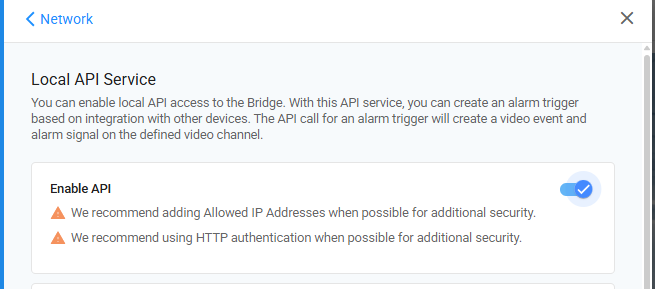
Enable the API:
Choose Auth Type:
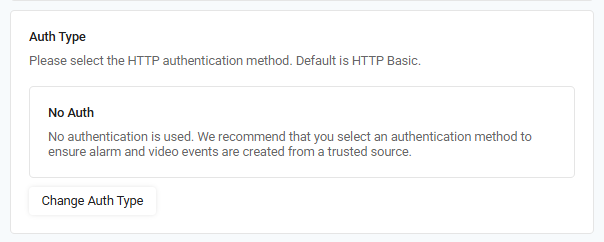

The Alta Video Software Supports Basic, Digest and No Auth
Set Port and Rate Limit:
In the Alta Software, the URL will follow the Local API Format for this integration method.
Example URL Format:http://192.168.1.210:3003/api/v1/channels/1/events
Channel = Mounted input number on the VCP