CHeKT Partitioning
What is CHeKT Partitioning?

Prerequisites for enabling partitions on existing sites:
Note: All new sites have partitions enabled automatically
1. Confirm all VCPs (Video Control Panels) are running firmware 6 or higher
2. Verify the site is in a "Disarmed" state
3. Verify all app users are configured with the correct permissions for merging purposes
Moving to partitions is permanent upgrade. All cameras will be configured as members of Partition 1 after the upgrade.
The new Partition menu will be available via Site Details and the Partition sub-tab.

Important Note: At this time the partition system will only work with devices located on the same local area network. There are improvements coming soon to allow for cross-network communication (such as mobile networks) with devices.
The Partitioning feature in CHeKT allows a dealer to split mounted cameras on a site into various groupings that can be individually armed and disarmed based on a customers wants.

If a site is placed in Partition but the cameras are not assigned to said partitions no alerts will be created nor will they be visible in the CHeKT App. It is imperative to assign cameras to partitions to guarantee alert generation and viewing.
Quick Read
1. Separate areas on the same site. Partitions allows for the creation of logical spaces such as Office or Warehouse so that these spaces can be independently armed and monitored.
2. Independent control from the CHeKT app. Customers can arm or disarm each partition as needed as well as set up arming schedules and system audio alerts tailored to each area.
3. Optional Alarm.com partition following. With the CHeKT to Alarm.com integration in place a CHeKT managed partition can follow the arming status of a Alarm.com partition via a Cloud connection.
"My site says "Unsupported Arming Source"; what does this mean?"
A "Unsupported Arming Source" message points to two possibilities:
1. The VCP is not on a firmware that supports Partitions.
2. The site is using Alarm Panel Arming and cannot be migrated into Partitions.
How to enable the partition feature
There is NO rollback path. If a site is put into Partition Arming it can not be swapped back out. If it needs to be changed the site must be deleted and rebuilt.On the desired site go to Site Details and then the Partition subtab. Once there click "Enable" and then:
Confirm the warning popup that the site cannot be reset to alarm panel pairing:
After confirmation the page will resolve itself into the partition configuration.
Partition Management
Once partitions are enabled and the page has resolved itself for configuration the user will see that all cameras begin in Partition 1:
To create the "first" partition click "Add Partition" at the top right:
And set the initial partition configuration:

For Self Monitored customers (not hooked to a Monitoring Station) enable the "Self Monitoring" slider
Once complete hit "Edit" at the top right:
And drag/drop the cameras into their corresponding partition:
Once cameras have been added to their respective partitions the new System Audio Alert settings can be configured.
Alert: Speakers are not yet considered "partitionable" and are still to be controlled primarily via normal use Automation Rule setup: https://support.chekt.com/portal/en/kb/articles/automation-rules.
Click the ellipses followed by "Go to Detail":
Followed by "Edit":
Within this section a dealer can set up various audio alerts to occur automatically during system operation as well as modify the Entry/Exit/Bell duration timers and the type of arming and schedule that will be used.
For schedule setup set up: Click the "Set up your first arming schedule" button and set your desired schedule:
It is critical to enable the slider to set the schedule to "Enabled". Failure to do so will prevent the partition from arming at the desired time.
Once the above are complete the site will then be partitioned. Cameras set within said partitions will arm/disarm based upon partition settings and will only send alerts when engaged.
Alarm Panel Partition Arming
CHeKT VCP partitions can be armed from a variety of ways: Alarm Panel Pairing, the CHeKT App and scheduled arming system, and the Cloud binding with Alarm.com sites. For the alarm panel pairing part: configuration may at first seem daunting but the setup is easier than may be believed.
From the sites Site Details tab click the Partitions sub-tab and then click the ellipses to the top right of the desired partition:
Once there click "Edit" at the top right:
And once clicked the page will display various changeable configuration options; allowing you to select the desired arming type:
And desired arming input:
Once this is complete navigate to the VCPs settings via the settings gear and then click on "Status" under "Arm Status":
And (if needed) configure the following voltage settings like the normal alarm panel pairing methods. Note the source will reflect the DI selected in the partition programming: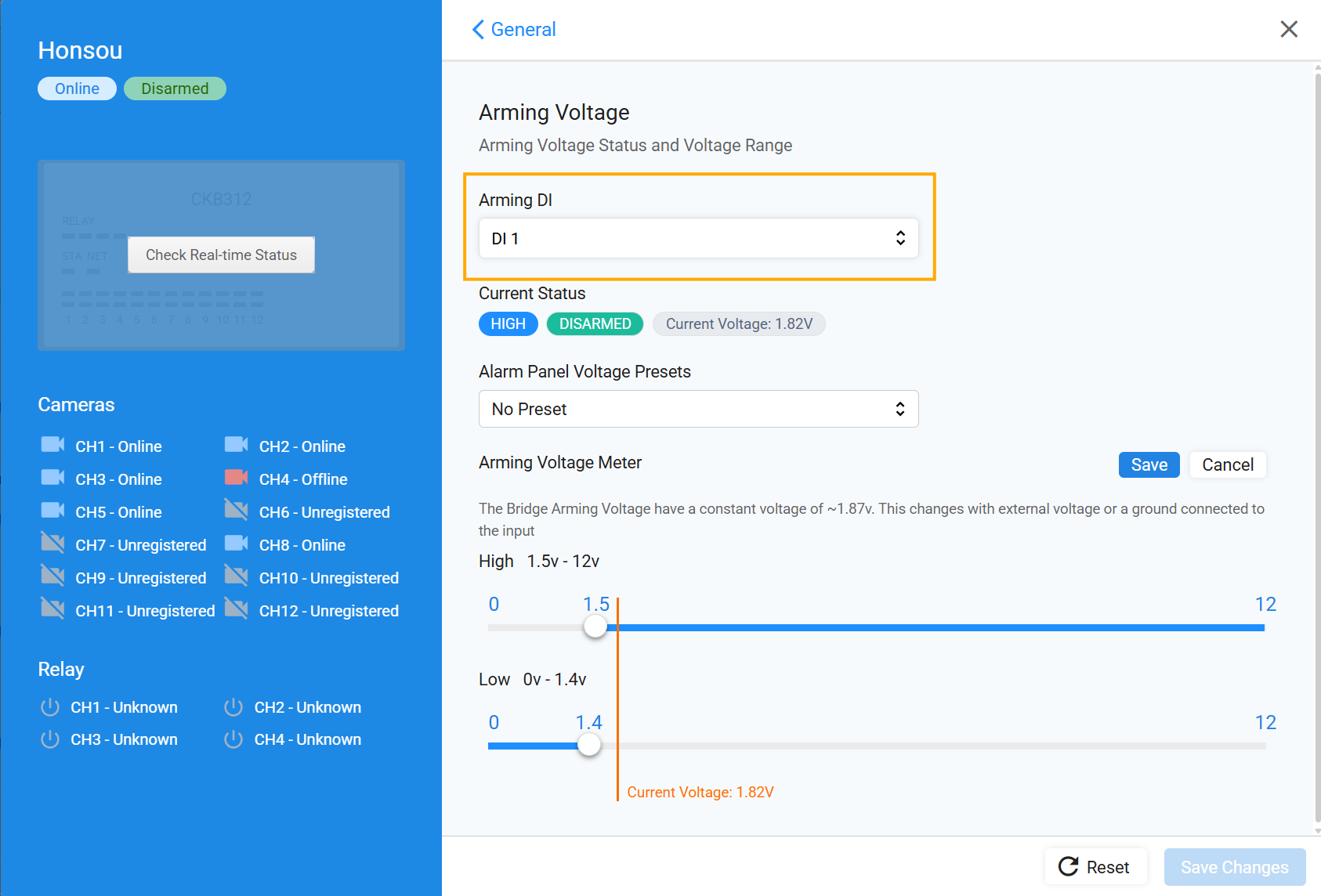
Configuring App Users
For App Users to experience the new partition feature, permission must be granted from the App Users section of the Dealer Portal.
Clicking on the username from the App Users page will open the users specific settings and selecting "Change Permission" will allow a dealer to set the appropriate level of access for the user.
Arming and Disarming a Partitioned Site
The arming and disarming of a partitioned site operates the same as a non-partitioned site with a singular caveat. The arming/disarming option now presents a list of available partitions for arming:
Clicking the desired partition brings up a confirmation screen:
And clicking "Ok" will arm the selected partition:
Additional information:
1. Ensure all End User permissions are configured for each individual partition.
2. If a CHeKT Site has been bound to an ADC site,
Partition 1’s Arming control is configured within the
Alarm.com dealer portal site configuration
Specifically, if CHeKT’s Partition 1 follows the
ADC arming state, or if CHeKT retains
independent control of Partition 1
FINAL WARNING: Converting a voltage-armed site to CHeKT Partitions removes voltage arming and cannot be reversed without deleting and rebuilding the site.