Using HTTP URLs with CHeKT Speakers

Using HTTP URLs with CHeKT Speakers


AlertCHeKT Speakers support HTTP URLs that can be used within Automation Rules to trigger audio playback.
Before configuring an HTTP Request action, verify that the speaker is running
firmware version 3.5.1 or later, as earlier firmware versions do not support this functionality.


 Verify Speaker Firmware

  1. Log in to the speaker's web interface.
  2. Confirm the speaker is running Firmware Version 3.5.1 or higher.
  3. Upgrade the firmware if necessary before proceeding.
InfoFor help updating speaker Fimware, click here.


Enable the HTTP URL

Log in to the speaker's web interface.
Navigate to the Alarm tab.
Locate the desired HTTP URL.
Enable the Play File option.
 All HTTP URLs use User File 1 for playback.
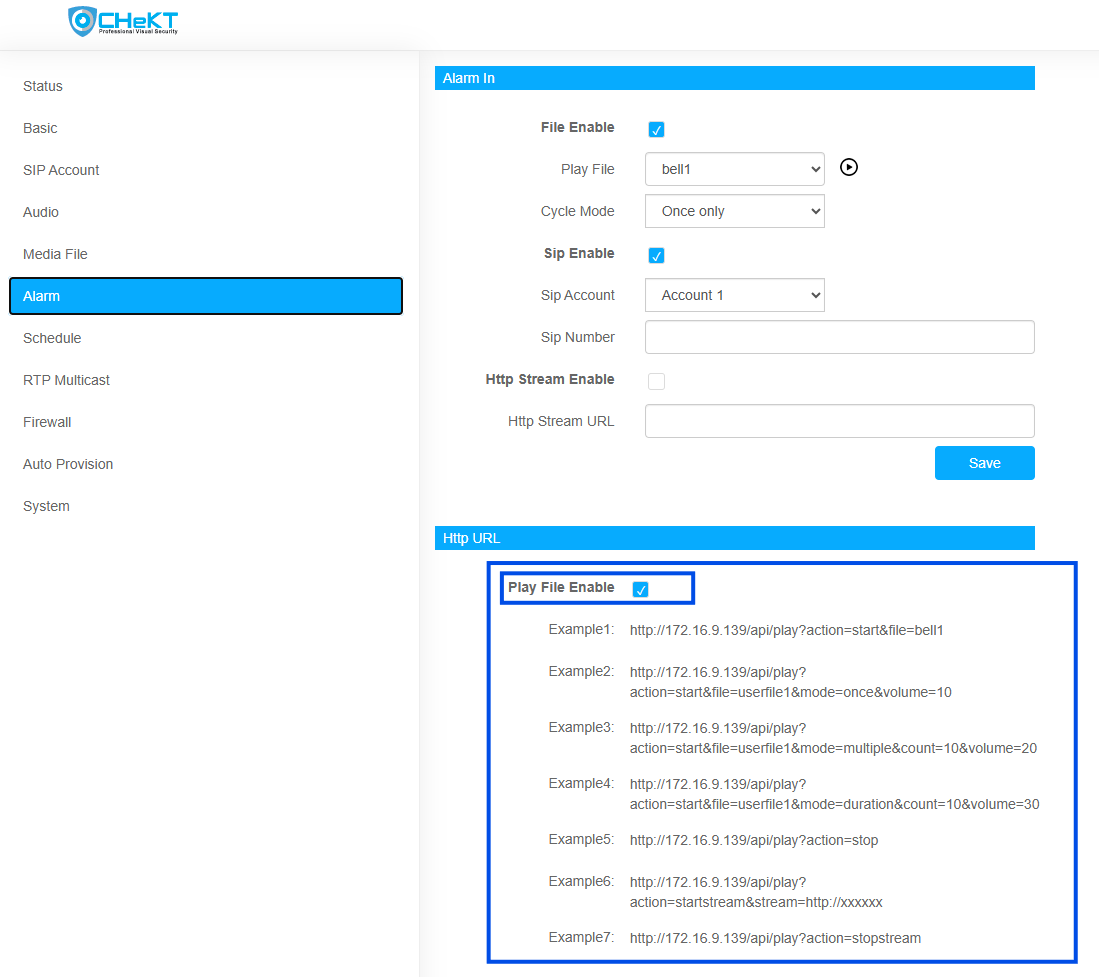


Select the Audio File


Navigate to the
Media File tab.
Upload or select the audio file you want the speaker to play.
Assign the desired audio file to
User File 1.


Notes
This is the audio file that will be played whenever the configured HTTP URL is triggered.

Configure the Automation Rule

  • Log in to the CHeKT Dealer Portal.
  • Navigate to Site Details > Automation Rules.
  • Create a new Automation Rule or edit an existing one.
  • Under Action, select HTTP Request.
  • Copy the desired HTTP URL from the speaker and paste it into the URL field.
  • Set Authentication to Digest Auth.
  • Enter the speaker's username and password.
  • Save the rule and select Test HTTP Action to verify communication with the speaker.


  • InfoThe HTTP URLs displayed on the speaker's web interface already include the speaker's local IP address. Simply copy the desired URL and paste it into the Automation Rule.
    • If the HTTP Action test is unsuccessful, verify:
      • The speaker is online and reachable from the CHeKT Bridge.
      • Firmware is version 3.5.1 or later.
      • Digest Authentication is selected.
      • The correct username and password are entered.
      • An audio file has been assigned to User File 1 under the Media File tab.
      • The Play File option is enabled for the selected HTTP URL.

    Notes
    Once configured successfully, the Automation Rule will trigger the selected audio file whenever the rule conditions are met.

      • Related Articles

      • CHeKT Cameras - Http Endpoint Commands for Camera Functions

        The following is a list of HTTP-based endpoints for CHeKT Cameras that allow you to control various features and functions. These commands can be used in CHeKT Automation Rules, within Stored Procedures in the Monitoring Portal, or from other ...
      • CHeKT AI Cameras Analytics Manual

        The latest licenced plug-in is a set of analytical tools loaded on our cameras that provides the means to perform advanced analytics, reduce false alerts and customize when events occur. This article will describe how to enable and configure the ...
      • Integrating Unifi Protect into CHeKT

        Overview This article walks through the steps to integrate a Unifi Protect camera into the CHeKT system, including configuring the camera stream, adding it to the CHeKT bridge, and setting up alarm webhooks. Step 1: Configure the Camera in the Unifi ...
      • CHeKT E-Series AI Camera Models

        The E-Series AI camera boasts a robust construction, ensuring its ability to withstand various environmental conditions. When using the CHeKT Video Bridge, this camera takes advantage of modern IP technology to communicate alarm signals from the ...
      • Automation Rule Scenarios: Common & Advanced Use-Case Examples

        With the 5.0 Firmware Version, the array of options to build, filter and suppress CHeKT Automated Rules have been expanded. The purpose of this article is to share some examples of rule combinations that can be used for practical applications in the ...