Hanwha WAVE Server and CHeKT: Alarm Integration using Cloud API Calls

This article is a guide to creating alarm traffic in the CHeKT Utilizing a Hanwha WAVE VMS Server. If the Hanwha camera supports edge-based analytics and resides on the same local area network as a VCP, the method described in this quick-start guide may be the simplest: https://support.chekt.com/portal/en/kb/articles/hanwha-cameras-in-chekt-quick-start-setup-guide

Minimum Hanwha Wave Server Version: 6.1.2
Minimum CHeKT VCP Version: 6.0.0.1

This integration will leverage the CHeKT Cloud-Level API. Swagger Documentation Linked here: https://public-apidoc-chekt.web.app/
Enabling the Cloud API Key in the CHeKT Portal
Log into the CHeKT Dealer Portal at https://dealer.chekt.com/ using a valid administrator credential.
Access the Settings Gear at the bottom of the left-hand navigation pane:
In the left-hand menu, click API Keys under the last section heading Developer Settings:
The presented menu will show any previously generated API Keys. There is a limit of 5 per Dealer Account, but they can be utilized in multiple integrations
Click Create API Key:
Name the Key:
Click the Next Button:
The Key is shown on the next screen, and it can be copied or downloaded for user tracking:
Ensure to retain this key for your records, as this key is no longer visible after Done is clicked
Click Done.
Configuring the Analytics in the WAVE Server
WAVE AI Plug In required to add analytics to non-AI camera streams in the Hanwha WAVE Platform
In the Hanwha WAVE Platform, right click the camera that will serve as the detection source and select Camera Settings:
Select Integrations from the Camera Settings Menu
Under WAVE AI, Expand the Analytics List:
Select the Analytic from the list, name it, and click the square to draw the zone:
Click 
Select Targets:
Click 
Configuring the Webhook in the WAVE Server
In the Wave Server Device List, right click on the same camera and chose Camera Rules
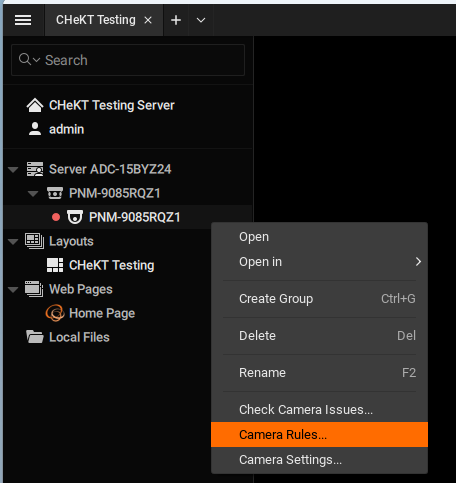
Click Add Rule
In the When configuration menu on the left hand side:
- Select Analytic Event in the first drop down
- Select the camera that was configured in the previous step
- Select the Analytic that was configured in the camera
- Ensure the rule is enabled

Be sure to select the Analytic Rule listed under WAVE AI to create alerts based on that advanced WAVE AI license
In the Do action, start by selecting "HTTP(S) Request from the drop down:
Select the event time that will create the trigger : When Event Starts is the recommended setting:
Enter the CHeKT Webhook URL:
When Utilizing the HTTP(S) Request from Wave we recommend the following this URL Format:
Where:
SITEID = {Your CHeKT Site ID}
CAMERAID = [The unique Camera ID}
This method will require that the Cloud API Key has been generated.
Additional Swagger Documentation on this API Call Method: https://public-apidoc-chekt.web.app/
Complete the Configuration:
- Select POST as the Method
- Enter Event Description in the correct format. Alarm can be set to a custom message.
- Set Authentication Method to Bearer
- Set Content Type to Application/Json
- Paste the token Generated in the CHeKT Dealer portal
- Select the interval rate limit
- Click
Testing and Troubleshooting
Arm the CHeKT Partition that the camera is enrolled in and enter the WAVE AI Detection area:
An alarm should be generated in the CHeKT Monitoring Portal:
Alarm Data in the CHeKT Activity Logs will display these events as sourced from LEAPI:
Things to confirm if the alarm is not generated in the CHeKT Platform:
- Launch a Program (such as POSTMAN) that can send API calls from the server machine. Copy paste the API call data and token being used in the Hanwha server and confirm alarm traffic.
- This will validate that the call and token you are using work properly.
- Run a CURL command (visible at https://public-apidoc-chekt.web.app/) on the local machine and ensure alarm traffic is generated properly.
- Access the Event log ins the WAVE Server rule configuration and confirm that:
- The HTTP Request Events appear in the log with the proper frequency and display the correct API Call: