Camera Analytics Supervision: Active/Dormant/Idle State
What
Changed in Version 6.0
Previously, the CHeKT platform displayed a camera analytics
condition as Active, Idle, or Dormant when viewing the camera in real time.
This helped technicians see whether metadata was currently being received, but
it was not designed for scalable supervision. The previous method did not store
or aggregate this information for reporting, and it could not generate Contact
ID signals for the monitoring center.
In version 6.0, CHeKT replaced that approach with Camera
Analytics Metadata Supervision, which supports historical visibility, dealer
level reporting, configurable service workflows, and optional alarm code
signaling.
With the new Camera Analytics Supervision reporting tools,
security companies, technical support teams, and monitoring centers can be more
proactive in identifying cameras that may no longer be functioning reliably as
alarm zone detectors.
Understanding
Unsupported and Disabled
After the 6.0 platform release, existing cameras may
initially show one of two availability values:
Unsupported
Unsupported means the site VCP firmware is below version
6.0, so Camera Analytics Supervision is not available for that camera.
Disabled
Disabled means the site VCP is running firmware 6.0 or
higher, but Camera Analytics Supervision has not yet been enabled for that
camera.
Configuring Camera Analytics Supervision

Required Firmware Version : v 6.0 or higher
In the CHeKT Portal, users can confirm camera alarm metadata communication with the VCP at a glance when viewing the connected devices.
This Active label highlighted below has historically signified that this camera has communicated a valid ONVIF Alarm Topic in the last 24 hours:
This timeframe can now be customized in the camera configuration screen:
Click on the Settings gear for the camera to be configured
Select the Alarm Tab:
Select the Idle/Dormant Configuration Option:
Enable The Function:
Select the Number (in days) of missing onvif alarm activity that will constitute the status change to the respective conditions:

Stock Ranges Shown
Click:  to complete configuration.
With this configuration saved:
If the VCP has received a valid alarm topic from that mounted camera in the last 24 hours, the status will display as Active:
If the VCP has not received a valid alarm topic from that mounted camera in the last 24 hours but has received a topic in the last 7 Days, the status will display as Idle
If the VCP has not received a valid alarm topic from that mounted camera in the last 7 Days, the status will display as Dormant:
After the CHeKT 6.0 VCP Firmware Release and Portal Update, these labels will not appear until they are enabled at the camera level.
Central Station Signaling (Contact ID Code Configuration)
The CHeKT Solution can communicate trouble codes into the Central Station as a result of a status change from Active to Idle or Dormant. This way, the Central Station Response team can contact the Dealer or customer to ensure the issue is known and addressed in a timely fashion.

Always confirm the action plan/pattern in place with the central station team for response actions
Global Configuration:
Log into the CHeKT Portal with proper administrative credentials, and click on the Settings Gear:
In the settings menu, scroll down to Integration and choose Alarm Library for XML Integration: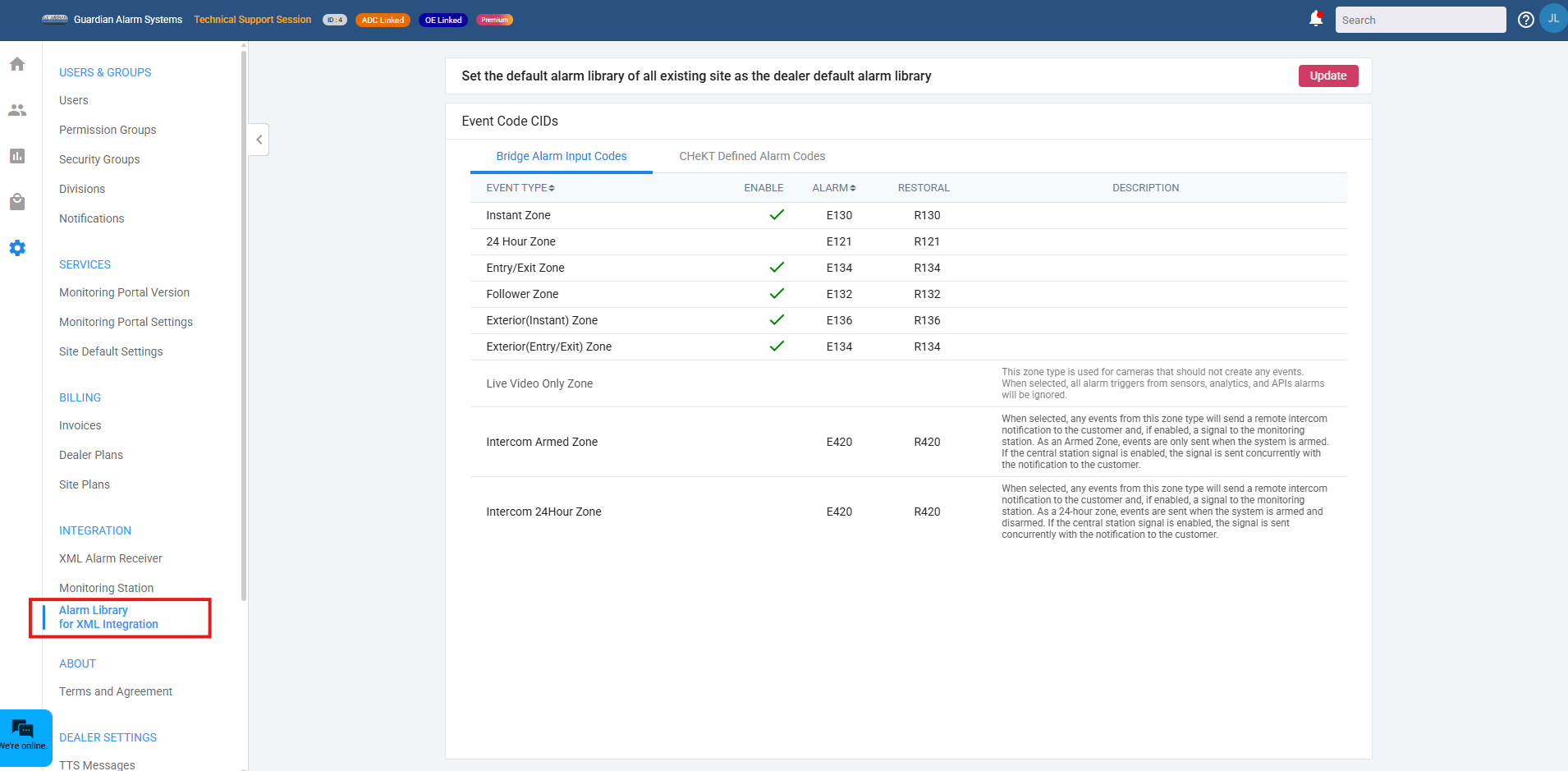
Select CHeKT Defined Alarm Codes:
Scroll down to locate the Camera Idle and Camera Dormant Topics: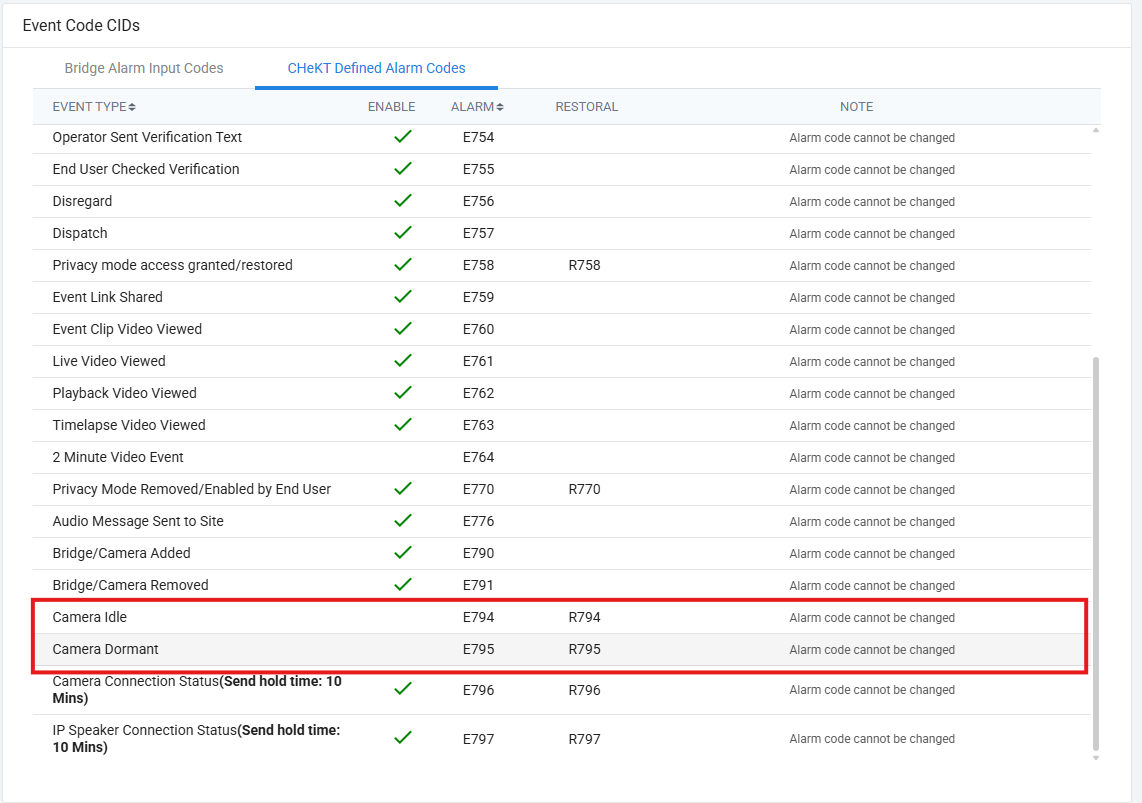
Click a line item to configure:
Select the Respective Trouble and Restoral Codes to enable and click the save button:
With the above configuration, when the camera enters Idle status, an E794 will be sent to the central station.
When the camera returns to active status, the R794 will be sent to signify that this camera communication has restored.
The Camera Dormant Status is enabled independently and communicates an E795 / R795 respectively:
Reporting and Bulk Updates:
A filterable report is now available in the Dealer Portal that will display the status of all cameras that have the Analytic Supervision Function enabled.
Access the Dealer Reports Tab on the left-hand navigation menu:
Select Camera Analytics Supervision under System Status:
This will open up the total list of CHeKT Sites in the Dealer Portal:
To edit the settings for the cameras on a site, click on that site line item:
To edit configuration options on the selected site, click the blue edit button:
Use the toggle in the Analytic Supervision Column to enable supervision for that camera channel, and make any required updates to the Idle or Dormant Values:
The Dormant and Idle thresholds not only affect when the status changes, but also when the associated XML code described above is sent to the Monitoring Station
A filter can be applied from the site list that will select only cameras displaying a specific status:
The Devices Tab will show the total list of connected cameras and their respective configuration options:
This Data can be filtered by site:
or by camera status/selected configuration:
The data can also be exported to CSV if required:
Thanks for reading!