VLC Media Player Frame Loss Test
VLC Media Player Frame Loss Test

Why do a VLC Test?
The VLC frame loss test is useful when a CHEKT system shows "Stream Disconnect" or "Camera Offline" error.
Testing the same camera stream in VLC helps determine whether the issue is caused by network or camera instability versus
CHEKT configuration or session handling. Dropped frames or bitrate instability in VLC point to an unreliable stream,
while clean playback suggests the problem exists higher in the system.
VLC Media Player Frame Loss Test
Why do a VLC Test?
The VLC frame loss test is useful when a CHEKT system shows "Stream Disconnect" or "Camera Offline" error.
Testing the same camera stream in VLC helps determine whether the issue is caused by network or camera instability versus
CHEKT configuration or session handling. Dropped frames or bitrate instability in VLC point to an unreliable stream,
while clean playback suggests the problem exists higher in the system.
CHeKT Dealer Portal
* Go to Site Details > Devices
* Hover over the camera you want to test and click the settings gear on the right side
* On the General tab go to the bottom and click on Mount Status
Click on the Mounting Info tab and Copy the Video Stream URL
Open the VLC Media Player app
* Click the Media Tab
* Select Open Network Stream
It will open up a new tab
* Enter the Video Stream URL you copied from the dealer portal
* Hit play in bottom right and it will open another tab
* Enter the cameras login credentials
A new tab with the cameras live feed will open
* Select Tools
* Select Media Information
Select Statistics and you will see the results in the boxed area
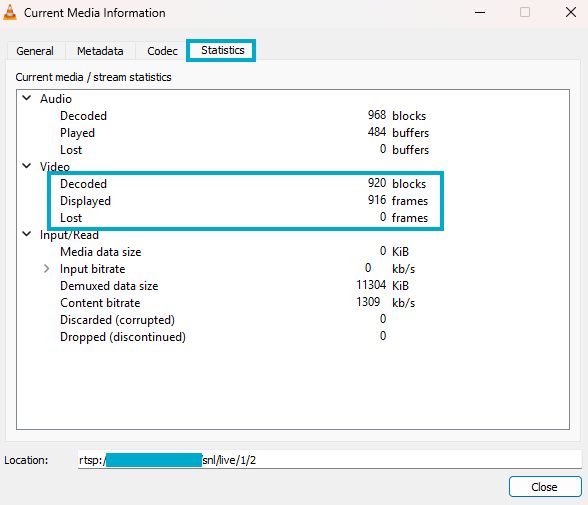

RUN THE TEST FOR AT LEAST 5 MINUTES FOR BEST RESULTS

NOTES:
If VLC shows stable frame rate and no packet loss:
* The camera and network path are likely healthy.
If VLC shows frame drops:
* The issue is between camera and your laptop (network, bandwidth, switch, cabling, etc.).
If VLC looks perfect but CHeKT shows disconnects:
* Now the issue might be beyond the camera, possibly outbound bandwidth, latency, firewall filtering, or cloud communication.
If a site is on cellular with 200–360ms ping), frame rate might technically be fine locally, but cloud delivery may struggle. Latency doesn’t always drop frames, but jitter (inconsistent latency) absolutely can.